
 Book a migration call

Every CRM migration has a mapping document, whether or not anyone wrote it down. If it lives in one admin’s head, it disappears when that person is busy, and every question about why a field looks wrong turns into an investigation. A written CRM data mapping template turns those decisions into a shared record that RevOps, sales leaders, and whoever runs the migration can all review, challenge, and sign off.
This guide explains what CRM data mapping is, which columns a mapping template needs, how to document source and destination fields, how to define transformations and default values, how to map relationships and owners, how to flag exceptions, and how to add validation rules and business owners. It ends with an example mapping table and a template you can copy. Along the way, it shows where SuprSwitch, SuprDense’s CRM migration platform, takes on part of the work.
What Is CRM Data Mapping?
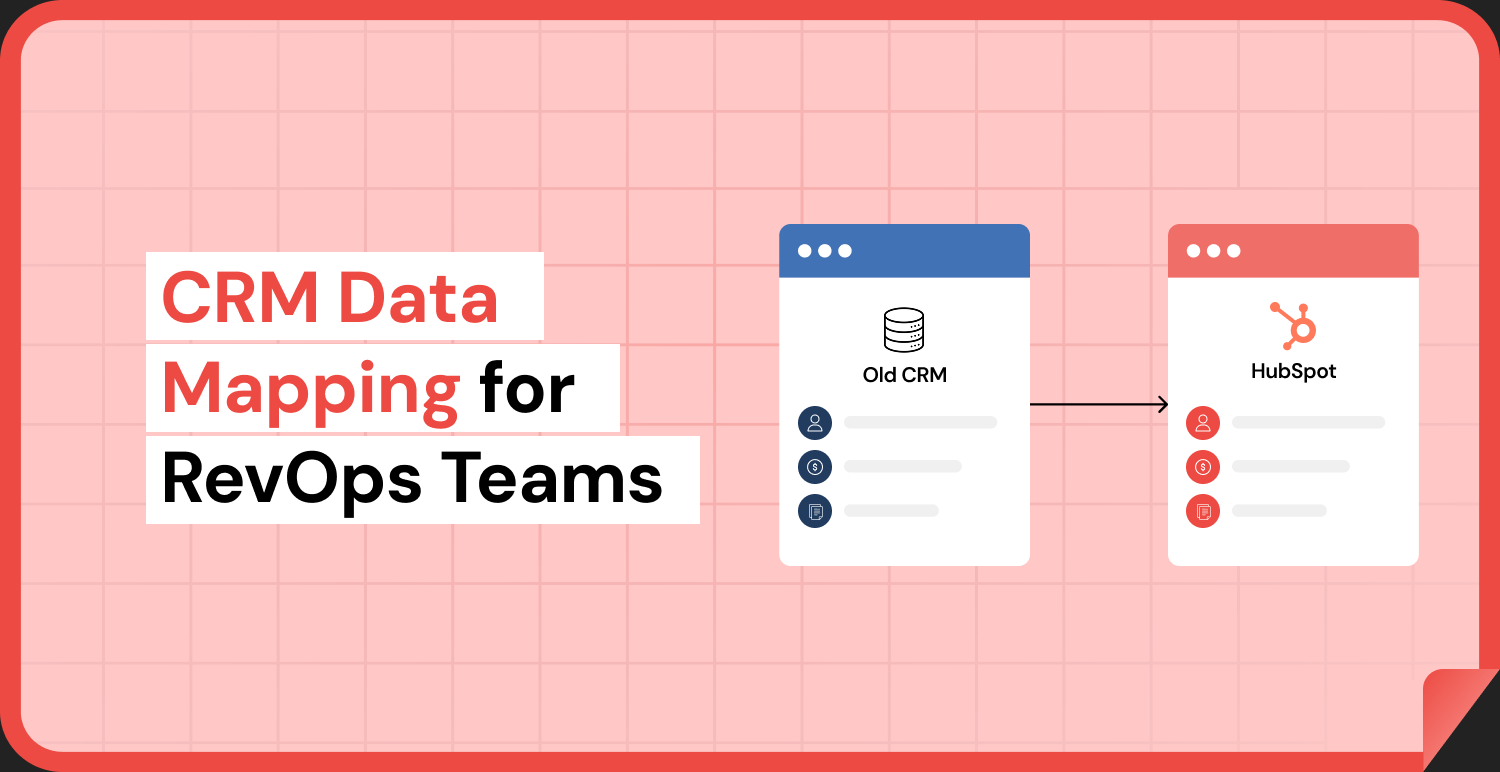
CRM data mapping is the process of deciding, field by field, where each piece of data in the source CRM will live in the destination and what happens to it on the way. It is often called source to target mapping, because every row connects a field in the old system to a property in the new one.
A complete mapping covers more than fields. It also records:
- Objects: Which source objects map to which HubSpot objects, such as Salesforce accounts to HubSpot companies.
- Transformations: How values change on the way, such as date formats, picklist values, or phone number formatting.
- Relationships: How links between records, such as a contact’s company, become HubSpot associations.
- Owners: How record owners in the source map to HubSpot users.
- Exceptions: Fields that will not move, and why.
The mapping is the specification for the whole migration. The import files, the test plan, and the reconciliation all depend on it. When something looks wrong after go-live, the mapping is the first place anyone should look.
In SuprSwitch, this specification becomes the Mapping Logic phase, the second of its four phases after Schema Analysis. The same decisions apply whichever tool moves the data. What changes is how much of the mechanical work you do by hand.
Required Columns in a Mapping Template
A useful data mapping spreadsheet has one row per source field and enough columns to answer every question a reviewer might ask. The columns below cover most CRM migration field mapping projects.
| Column | What it holds | Why it matters |
|---|---|---|
| Source object | The object the field belongs to, such as Account | Fields are only unique within an object |
| Source field label | The name users see in the source | Lets business owners recognize the field |
| Source API name | The name used by the API and in exports | The reliable key for every mapping row |
| Source data type | Text, picklist, number, date, lookup, and so on | Drives the choice of destination type |
| In use | Whether the field is populated and used | Unused fields can be dropped |
| Destination object | The HubSpot object, such as Company | Confirms the object mapping |
| Destination property label | The name users will see in HubSpot | What appears on records and reports |
| Destination internal name | HubSpot’s internal property name | Used by imports, integrations, and the API |
| Destination field type | Single-line text, dropdown select, number, and so on | Must match the data |
| Transformation rule | How the value changes on the way | Makes the conversion repeatable |
| Default value | What to load when the source is blank | Avoids empty required fields |
| Required | Whether the property must have a value | Drives validation |
| Business owner | The person who approves the row | Gives every decision an owner |
| Validation rule | How the result will be checked | Links mapping to testing |
| Status | Draft, in review, approved, or exception | Shows what is still undecided |
Two of these columns deserve a note. Salesforce distinguishes between a field label, which is how a field appears in the interface, and its API field name, which is what the API uses, and its help documentation notes that custom fields end in __c in their API name. Use the API name as the key, because labels can repeat or change. On the HubSpot side, the internal name matters for the same reason. HubSpot’s documentation states that you cannot edit a property’s internal name once it is created, so settle it in the template before anyone builds the property.
Document Source and Destination Fields
Start with the source. Export the full field list for every object you plan to move, including standard and custom fields, with their labels, API names, and data types. Then add a column showing whether each field is actually used. A field that is empty on almost every record, or that nobody reports on, is a candidate to drop, and leaving it behind is one of the simplest CRM data migration best practices to follow: every field you do not move is a property you do not have to create, explain, or test.
Then work through the destination. For each field you keep, choose the HubSpot property it will map to, or create a new one, either in HubSpot’s property settings or, with SuprSwitch data mapping capabilities, directly from the mapping screen while you work through the list. Check the field type carefully. HubSpot warns that changing an existing property’s field type can invalidate the values already stored, so it is far cheaper to choose the right type in the template than to change it after the data has loaded.
Dropdown fields need extra care. HubSpot lets you set a label and an internal value for each option, and it states that internal values cannot be updated once they are saved. Agree the option list, including both labels and internal values, before the property is created.
If you use SuprSwitch, its Schema Analysis phase scans the source CRM and surfaces every custom field, record count, and property type, and flags duplicates, empty required fields, and broken associations before any data moves. In the Mapping Logic phase, standard objects and default properties are mapped automatically, custom fields are mapped from a drop-down, and if a matching property or custom object does not exist in HubSpot yet, it can be created from SuprSwitch in a single click. The template still records the decisions. SuprSwitch removes much of the manual setup behind them.
Define Transformations and Default Values
Very few fields move unchanged. The transformation rule column records exactly how each value is converted, so the conversion is the same in the sample, the full load, and any re-run.
| Transformation | Example | Rule to record |
|---|---|---|
| Format standardization | Phone numbers, country names, date formats | The target format and how exceptions are handled |
| Value mapping | Source picklist values to HubSpot dropdown options | A value map listing every source value and its target |
| Split | A full name field into first and last name | How the split is made and what happens with edge cases |
| Combine | Several address lines into one property | The order and separator |
| Type conversion | A number stored as text into a number property | What happens to values that are not valid numbers |
| Time zone handling | Date and time values | Which time zone counts as correct |
Value mapping is where most errors come from. Build the map from the values actually stored in the source records, not only from the options defined in setup, because old records often hold retired values. HubSpot notes that when a text property is converted to a dropdown, values that differ only in case or spacing become separate options, which is a good reason to clean values before they are loaded.
Default values fill gaps. Decide for each required property what to load when the source is blank, such as a placeholder lifecycle stage or a default owner, and record it in the template. HubSpot allows default values on text, number, and dropdown style properties, but a default in the template is clearer because reviewers can see it. Also decide whether an import should overwrite existing values in HubSpot. HubSpot’s import tool lets you choose not to overwrite an existing value for a mapped property, which matters when HubSpot already holds better data than the source.
Map Relationships and Record Owners
Fields describe a record. Relationships and owners give it context, and they need their own rows in the template.
For relationships, add a section to the mapping that lists every link between objects in the source, such as a contact’s account, an opportunity’s contacts, or a custom object’s parent. For each one, record the HubSpot association it becomes, any association label that describes the role, and the identifier that will be used to match the records, such as the source record ID stored in a custom property. A lookup field must never be mapped to a plain text property, because the value arrives but the link does not.
For owners, list every source user who owns records, and map each one to a HubSpot user. Decide what happens to records owned by people who have left: reassign them to a manager, a territory owner, or a default owner, and write the rule down. Users generally need to exist in HubSpot before records can be assigned to them, so create them first.
SuprSwitch handles much of this automatically. It maps and migrates associations from the source, and its association integrity mapping preserves one-to-one and labeled relationships as records move. Users whose email address matches in both systems are mapped automatically, and its ownership transfer engine resolves records owned by deactivated users before anything moves. The template still records the rules, so reviewers can approve them.
Flag Unsupported Fields and Exceptions
Some source fields have no clean home in HubSpot. They need a row in the template like everything else, marked as an exception with a reason and a decision.
Common exceptions include:
- Formula and calculated fields: Rebuild them as HubSpot calculation properties where possible, or load the current value as a plain property and label it clearly, because it will no longer update.
- Roll-up fields: Rebuild them as rollup properties, or load the current value, and compare the result after the load.
- Encrypted or sensitive fields: Decide with the security owner whether the data should move at all.
- Files and attachments: Decide whether they belong in HubSpot or in a separate archive.
- Automation and validation rules: These are logic, not data. List them so they are rebuilt as HubSpot workflows or retired.
Each exception row should say whether the field is rebuilt, loaded as a static value, archived outside the CRM, or dropped, and who approved that decision.
SuprSwitch maps any field or object that lives in the source CRM, so custom objects and custom fields are not exceptions in themselves. Logic is different: formulas, workflows, and validation rules have to be rebuilt in HubSpot whichever tool you use.
Add Validation Rules and Business Owners
A mapping row is only finished when someone has decided how to check it and someone has approved it.
The validation rule column records how each mapped field will be checked after loading. Typical rules are a comparison of value distributions for a dropdown, a sample check against the source for a date, or a count of blanks for a required property. You can also enforce rules inside HubSpot. HubSpot’s property validation rules can, for example, require a format for text or phone values, set minimum and maximum values for numbers, restrict dates, or require unique values. HubSpot notes that these rules apply to data entered in the CRM and to imports, but they do not change values that already exist, so set them before loading.
The business owner column gives every row a person who understands what the data means. That person is usually not the admin doing the mapping. A sales operations lead owns pipeline fields, a marketing lead owns lifecycle and source fields, and a finance contact owns billing fields. Ask each owner to review and approve their rows, and record the approval in the status column.
Approval should happen before the first test load, and again if the mapping changes. With SuprSwitch, this lines up with its Pilot Validation phase: a representative sample moves first, and the run checks relational integrity, field truncation, and association chains, so owners can review real records against their approved rows.
Example Data Mapping Table
The rows below show how a completed template reads. They are illustrations, not data from a real project.
| Source field (API name) | Source type | HubSpot property | HubSpot type | Transformation | Default | Owner | Validation | Status |
|---|---|---|---|---|---|---|---|---|
| Account.Industry | Picklist | Company: Industry | Dropdown select | Map each source value to the HubSpot list; merge retired values into Other | Other | Sales ops | Compare distributions | Approved |
| Account.Website | URL | Company: Company domain name | Text | Strip protocol and path to leave the domain | Blank | Sales ops | Spot check sample | Approved |
| Contact.Phone | Phone | Contact: Phone number | Phone number | Add country code; keep extensions | Blank | Marketing ops | Format check | In review |
| Opportunity.StageName | Picklist | Deal: Deal stage | Pipeline stage | Map each stage to the agreed HubSpot stage | First open stage | Sales ops | Count deals per stage | Approved |
| Opportunity.Amount | Currency | Deal: Amount | Number (currency) | Keep currency code in its own property | Blank | Finance | Compare totals by stage | Approved |
| Account.Region__c | Picklist | Company: Region | Dropdown select | Value map agreed with regional leads | Unassigned | Sales ops | Compare distributions | Exception: merge pending |
Notice that every row has an owner, a validation rule, and a status. A row without those is not finished, however obvious the mapping looks.
Download and Use the Template
To use the template, copy the columns from section 2 into a spreadsheet, with one tab per source object and a separate tab for relationships and owners. Then work through it in order:
- Fill in the source columns from a full field export, and mark which fields are in use.
- Choose the destination object and property for every field you keep, and agree internal names and dropdown values.
- Add transformation rules, default values, and required flags.
- Add relationships and owner mappings in their own tabs.
- Mark exceptions with a reason and a decision.
- Add a validation rule and a business owner to every row, and collect approvals.
- Version the file, and update it whenever a test load reveals something new.
Keep the template alive after go-live. It is the record of what moved, how, and why, and it is the first document anyone will reach for when a report looks wrong.
Conclusion
A good mapping template is less about the spreadsheet and more about the decisions it captures: which fields move and which stay behind, which HubSpot property and field type each one becomes, how values are transformed and defaulted, how relationships and owners carry over, which fields are exceptions, and how every row will be checked and who approves it. When each of those is written down and signed off before the first test load, the migration has a specification everyone can work from, and the answer to every later question is already on file.
Copy the columns into your own sheet, start with the objects that matter most to your sales team, and get business owners reviewing rows early. If you would rather not build every row by hand, SuprSwitch turns the same mapping into a guided process, from Schema Analysis to Pilot Validation.
Frequently Asked Questions
01 What is a CRM data mapping template?
It is a spreadsheet that records, field by field, where each piece of source CRM data will go in the destination, how it is transformed, who owns it, and how it will be checked. It is the specification for the whole migration and the record of every mapping decision.
02 Which columns should a mapping sheet include?
At minimum: source object, field label, API name, and data type; destination object, property label, internal name, and field type; transformation rule, default value, required flag, business owner, validation rule, and status. Add separate tabs for relationships and owners.
03 Who is responsible for field mapping?
The migration lead or CRM admin drafts the mapping, but each row needs a business owner who understands the data, such as sales operations for pipeline fields or marketing for lifecycle fields. The business owner approves the row, and the approval is recorded in the template.
04 How are unsupported fields documented?
Each one records the reason it cannot map directly and the decision: rebuild it in HubSpot, load the current value as a static property, archive it outside the CRM, or drop it, along with who approved that decision.
05 When should the mapping be approved?
Before the first test load, and again whenever the mapping changes. Approving early means test results can be judged against agreed rules, and approving again after changes keeps the template in step with what is actually migrated.
Manual migrations cost more than engineer hours.
Skip the QA cycles, data cleanup, and errors found weeks after go-live. SuprSwitch runs the full migration in 3-4 days, validated record by record.