
 Book a migration call
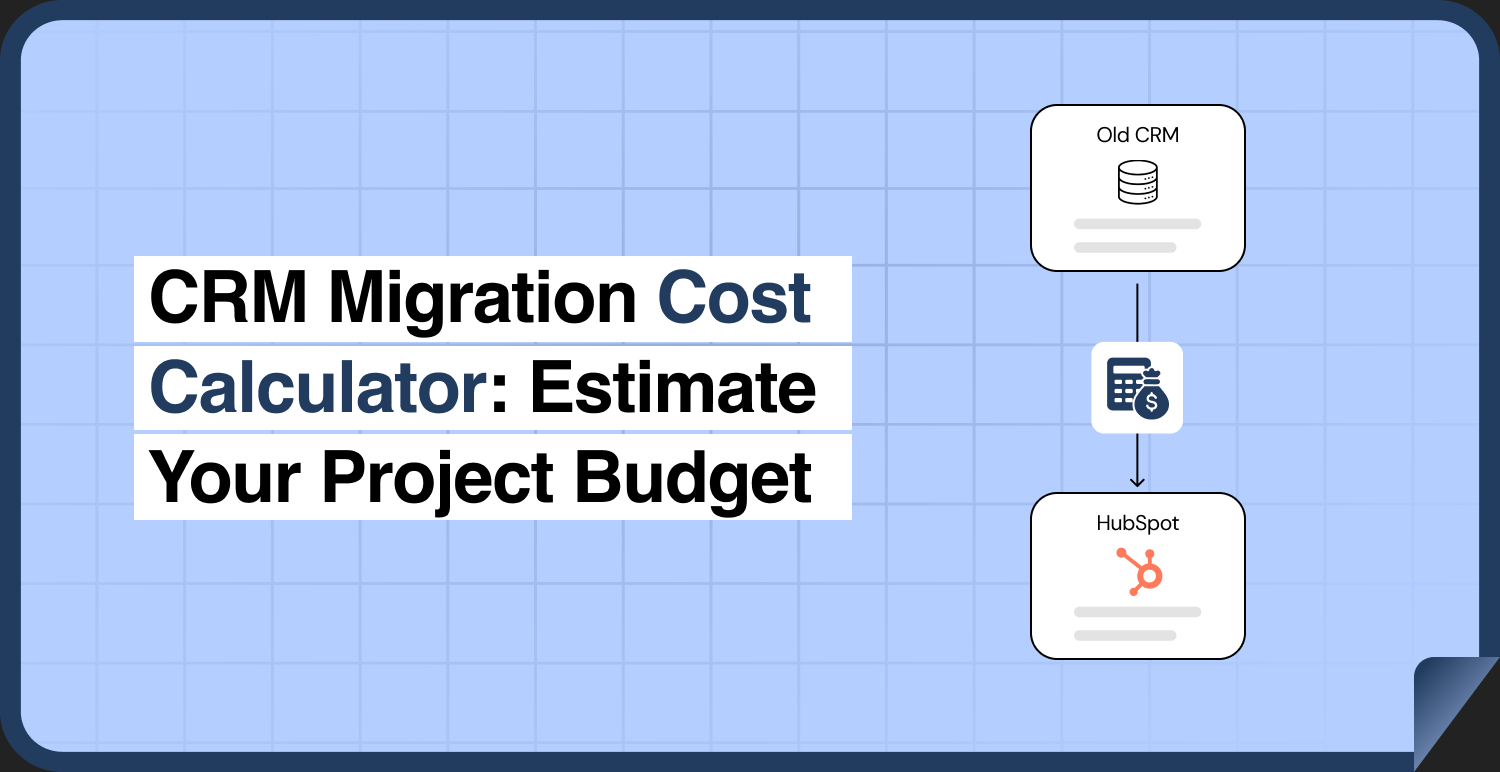

Many CRM migration cost calculators ask for a few numbers and return a price. The price depends on rates the calculator cannot see, and on parts of your data it cannot ask about. This CRM migration cost calculator works differently. It turns your CRM into a profile of cost drivers, shows you which ones will take the most work, and gives you a scope you can take to any provider.
It does not return a dollar figure, because the cost of a migration depends on who does it and what your data looks like. What it does is make sure every quote you get is for the same work, and that nothing that moves your CRM migration budget is missing from it. The examples are for moves into HubSpot. Where SuprSwitch, SuprDense’s CRM migration platform, changes the work behind a driver, the guide says so.
How the CRM Migration Cost Calculator Works
The calculator has four steps:
1. Rate each driver. Use the table in the next section to mark each cost driver as Low, Medium, or High for your CRM.
2. Read your profile. Mostly Low means a lighter project. Each High is work that needs its own line in a scope.
3. Write the scope. List what moves, what gets rebuilt, and what stays behind.
4. Take it to providers. Ask each one to quote against the same scope.
The sections after the table explain why each driver matters, so you can rate it with confidence.
SuprSwitch’s Schema Analysis phase can fill in much of the profile for you. It scans the source CRM and surfaces record counts, custom fields, and property types, and flags duplicates, empty required fields, and broken associations, which covers the volume, data quality, and custom object rows.
Inputs That Affect Your Estimate
Rate each driver for your own CRM. The thresholds for record volume come from HubSpot’s import limits. The other levels describe how much design and testing work a driver adds.
| Driver | Low | Medium | High |
|---|---|---|---|
| Source CRM | On HubSpot’s Smart Transfer list | Not on the list, so data moves through exports or the API and HubSpot’s import tool | More than one source system |
| Record volume | Each object fits in one import file (1,048,576 rows)[1] | Some objects need several files | Total volume approaches HubSpot’s daily import limit (10,000,000 rows)[1] |
| Data quality | Contacts have unique emails, companies have domains, few duplicates | Some contacts without email or companies without a domain | Many missing identifiers or many duplicates |
| Custom objects and relationships | Standard objects only | A few custom objects | Many custom objects or many-to-many relationships |
| Activity history | Not moved, or recent only | A defined period of history | Full history, including emails and meetings |
| Automation | None to rebuild | A few simple automations | Many, or with complex logic |
| Integrations | Email and calendar only | A few, with HubSpot connectors | Many, or custom-built |
| Validation needs | Spot checks | Reconciled counts and associations | Formal sign-off, rollback plan, or parallel run |
| HubSpot plan fit | Your plan covers the design | One feature needs a higher tier | Several features need a higher tier |
The plan row matters because the HubSpot subscription is a separate budget line from the migration itself.
Source and Destination CRM
The source CRM decides how data comes out. The destination decides what it can hold and which plan you need.
HubSpot’s Smart Transfer covers a fixed list of source apps. It moves data one way, is designed for a one-time migration, and can only be run by a Super Admin. Mapping custom fields through it requires a Data Hub subscription, and it does not support custom objects. If your source is not on the list, the data has to move another way.
Some teams use CRM migration tools that connect to the source and destination directly instead of working from files. Others use exports and HubSpot’s import tool. Either way, the source sets the limits. Salesforce, for example, limits how often you can export your data, includes attachments and files in an export only if you select them, and deletes the export files after a set period. If you extract through its API instead, you work within a daily allowance for the whole org that your other integrations share.
SuprSwitch is one of those tools. It connects to the source CRM and HubSpot through their APIs, maps any field or object that lives in the source, including custom objects, and moves data directly under a no-storage architecture, so it is never held on SuprSwitch servers.
On the destination side, several HubSpot features depend on your subscription. Custom objects need Enterprise, workflows need Professional or Enterprise, and the leads object needs Sales Hub Professional or Enterprise. Settle the plan before you finalize the design.
Record Volume and Data Quality
Volume
On paid HubSpot accounts, an import file can be up to 512 MB and 1,048,576 rows[1]. You can import up to 10,000,000 rows and run 500 imports in a rolling 24 hours[1]. Volume above a single file means splitting and sequencing the load, which is project time. That is why the volume row in the table uses these limits.
Volume also drives tool pricing. SuprDense prices SuprSwitch migrations on the total number of records in the source CRM, so the counts you gather for this row feed straight into a SuprSwitch quote.
Data quality
HubSpot matches contacts by email address and companies by domain name, and an import without a unique identifier creates duplicates. Contacts without an email and companies without a domain need a plan before the import. Duplicates in the source become duplicates, merged records, or review work in HubSpot. Cleaning before the move reduces what has to be loaded, mapped, and checked.
Marketing contacts
If you use Marketing Hub, contacts count toward your billable tier only when they are marketing contacts. Contacts imported without a marketing status are non-marketing by default, and you can set a single-file contacts import to mark them as marketing contacts. If you exceed your tier, HubSpot upgrades you automatically to the next one. You are billed for it until your next renewal, even if the count drops. Super Admins and users with the Modify Billing permission can set a maximum, and imported contacts that would exceed it are set as non-marketing instead. Decide the number before the import.
Custom Objects, Associations, and Activities
HubSpot’s Smart Transfer does not support custom objects. Creating custom objects in HubSpot requires an Enterprise subscription, and each subscription limits objects, properties, and associations. Every custom object in your source is therefore moved into a HubSpot custom object, folded into a standard object, or left behind. Each option changes the cost in a different way.
Associations are the links between records, such as a contact and its company or a deal and its contacts. An import can create associations between objects, using identifiers such as email address, domain name, or record ID. Relationships that exist only in the source, such as many-to-many links, need their own design.
For activities, HubSpot’s import tool can create emails, meetings, notes, and tasks, but it cannot update existing ones. Each type needs certain properties, such as an email body and direction, or a task title and due date. HubSpot recommends including an activity date, and if you leave it out the import uses the date and time of the import. A wrong activity load cannot be fixed by importing again, so decide how much history you need before you rate this driver.
SuprSwitch migrates notes, calls, meetings, and tasks along with email history, its activity-type mapping keeps each activity on the matching HubSpot type, and its association integrity mapping preserves one-to-one and labeled relationships. That moves some of this driver from design work to mapping work.
Integrations and Automation
HubSpot’s import tool loads records and activities. It does not carry over automation logic, so workflows are designed and built separately, and workflows need a Professional or Enterprise subscription. Count the automations your team depends on, and retire the ones nobody uses.
List every tool that sends data to your CRM or reads from it. For each one, decide whether it will be reconnected to HubSpot, replaced, or retired. A tool with a HubSpot connector and a custom-built integration are different jobs, which is why the table separates them.
Testing, Reconciliation, and Go-Live Support
A pilot on a representative sample finds mapping problems while they are cheap to fix. HubSpot’s standard sandbox needs an Enterprise subscription. It copies your setup and, if you choose, a set of your most recently updated contacts with a limited number of associated records. Deploying from a sandbox to production covers supported assets and configurations, not records, and integrations are not connected automatically. If your plan does not include one, plan where the pilot will run.
Reconciliation means more than counting records. A matching count shows the data moved, not that it matches, so check associations, owners, deal stages, and activity history too. Our CRM migration checklist covers the verifications to run before go-live.
SuprSwitch builds the pilot into its process. Its Pilot Validation phase runs a sample migration before the full run, and during Final Execution its real-time record validation flags any record that does not arrive while its retry mechanism re-runs failures. A free sample migration on your own data is also a low-cost way to test a driver before you rate it.
Plan the cutover as well. Keep the source available until validation is complete, and check your source CRM’s renewal date against your go-live date. Agree on what support you get after go-live and how long it lasts.
Example Migration Scenarios
These three examples are illustrations. They are not real client projects and they carry no prices. They show how the profile changes with the shape of the data.
| Driver | A: Small team, standard objects | B: Growing team, custom data | C: Several systems merged |
|---|---|---|---|
| Source CRM | Low | Medium | High |
| Record volume | Low | Low | High |
| Data quality | Medium | Medium | High |
| Custom objects and relationships | Low | High | High |
| Activity history | Low | Medium | High |
| Automation | Low | Medium | High |
| Integrations | Low | High | Medium |
| Validation needs | Low | Medium | High |
| HubSpot plan fit | Low | High | High |
Scenario A. Almost everything is Low, so the work centers on cleaning the contacts that lack an email and checking the result. A transfer or an import may cover most of it, and the main costs are your team’s time and the HubSpot plan.
Scenario B. The volume is small, but custom objects, integrations, and the plan they require are High. The scope needs a data model for the custom objects, an Enterprise subscription, rebuilt workflows, a reconnected integration list, and a pilot. A provider would quote these items separately.
Scenario C. Most drivers are High. This project needs an assessment before anyone can quote it, because each system, its volume, and its history have to be sized on their own.
The same logic applies to your own profile. The more High ratings you have, and the more of them are in custom objects, history, or integrations, the more important a written scope becomes.
Get a Tailored Migration Estimate
Get a Custom CRM Consolidation Estimate
Every CRM consolidation project is different. To provide an accurate estimate for moving your data into HubSpot, we’ll need a few details:
- Source and destination CRMs: Which platforms are you consolidating?
- Record volume: How many contacts, companies, deals, and other records need to be migrated?
- Data structure: Are custom objects and custom fields involved?
- Activity history: How much historical data needs to be preserved?
- Workflows and integrations: Which automations and third-party integrations need to be rebuilt?
- HubSpot subscription: Which HubSpot plan do you currently use or plan to purchase?
- Migration timeline: What is your target go-live date, and what validation requirements do you have?
With SuprSwitch, record counts and a free sample migration help establish the scope and starting point for your quote. Choose from self-service, guided, or custom migration options based on your requirements.
Planning to consolidate multiple CRMs into HubSpot? Talk to a SuprSwitch migration expert to discuss your migration requirements and get a tailored estimate.
The cost of a CRM migration comes from the shape of your data, not from a headline number. Rate each driver, write down the scope, and ask every provider to quote the same work. That is the most reliable way to a CRM migration budget you can defend. If you want to test your profile on real data, try a sample migration with SuprSwitch.
References
[1] HubSpot Knowledge Base, Format import files. https://knowledge.hubspot.com/import-and-export/set-up-your-import-file
Frequently Asked Questions
01 How do you estimate CRM migration costs?
Rate each cost driver for your CRM, write a scope from the High ones, and ask providers to quote against it. The price comes from the provider’s rates applied to that scope.
02 Which details are needed for a migration estimate?
The source and destination CRM, record counts per object, custom objects and fields, the activity history you need, workflows and integrations to rebuild, your HubSpot plan, your go-live date, and how strict the validation must be.
03 How can I estimate the cost of migrating my CRM to HubSpot?
Start by identifying your source CRM, record volumes, custom objects, activity history, and migration requirements. Enter these details into a CRM migration calculator to get an indicative estimate. A sample migration and detailed project assessment can help establish the final scope and cost.
04 Is a CRM migration calculator estimate the final migration cost?
No. A CRM migration calculator provides an indicative estimate based on the information entered. The final cost may vary depending on data complexity, custom object mapping, association requirements, integrations, and validation needs identified during the project assessment.
05 an I calculate CRM migration costs for different platforms?
Yes. You can estimate migration costs for different source and destination CRM combinations by considering record volumes, data structures, custom fields, activity history, and migration requirements. The complexity of mapping data between platforms can influence the overall estimate.
Manual migrations cost more than engineer hours.
Skip the QA cycles, data cleanup, and errors found weeks after go-live. SuprSwitch runs the full migration in 3-4 days, validated record by record.