
 Book a migration call

A migration tool that reports success has told you one thing: it finished. It has not told you that the right records arrived, that their values are correct, that contacts are still connected to their companies, or that the sales team will find what it needs on Monday. Reconciliation is the work that answers those questions, and it is the step most often shortened when a project is running late.
This guide explains what CRM data reconciliation is, how to set a baseline, which checks to run and in what order, how to handle missing and duplicate records, how to report exceptions, and how to agree on when the migration is accepted. It also shows where SuprSwitch, SuprDense’s CRM migration platform, builds reconciliation checks into the migration itself.
What Is CRM Data Reconciliation?
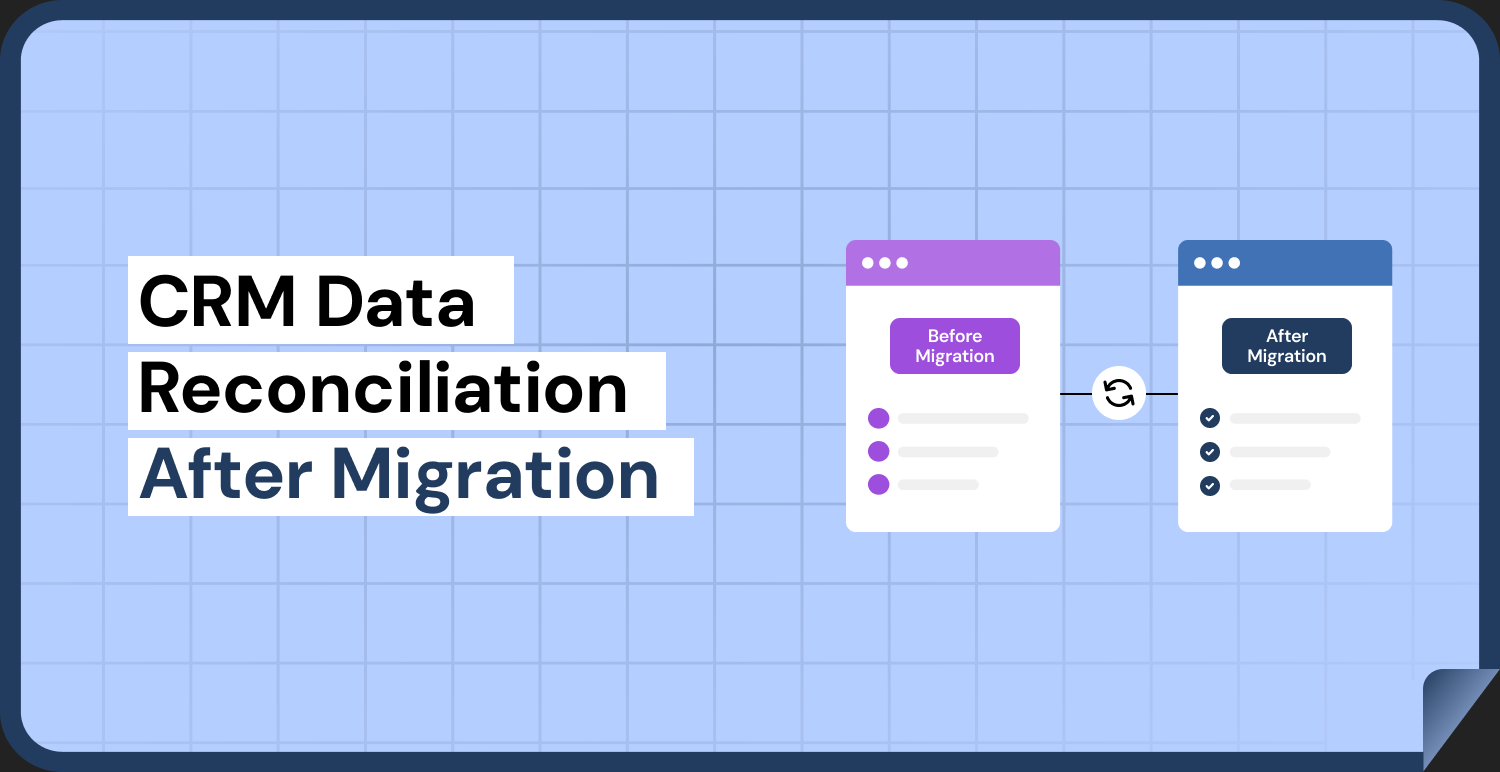
Reconciliation is the process of proving, record by record or in aggregate, that the data in the new CRM matches the data in the old one, apart from differences you chose on purpose. The last part matters. A migration always changes something: duplicates are merged, obsolete records are dropped, values are standardized. Reconciliation does not demand that nothing changed. It demands that every difference can be explained.
It answers four questions. Are all the expected records present? Are their values right? Are the relationships between them intact? And is everything that is different accounted for? Each question is a different kind of check, and passing one does not mean passing the others. A destination can have exactly the right number of contacts, each with the wrong owner.
Reconciliation is different from testing a sample before the full load. Both are needed. Sample testing tells you the mapping works. Reconciliation after the full load tells you the migration worked.
SuprSwitch treats both as part of the same process. Its Pilot Validation phase tests the mapping on a representative sample, and its Final Execution phase validates records as they move. Neither replaces the business checks in this guide, but they mean fewer surprises reach them.
Establish a Pre-Migration Baseline
You cannot reconcile against a source that has moved. Before the load, take a baseline snapshot of the source and keep it unchanged for the length of the project.
- Counts: Record counts for every object and, where useful, by segment: by record type, owner, pipeline, status, and created year.
- Totals: Sums and distributions for the fields that matter to the business, such as deal amounts by stage and owner, the number of open deals, and the number of contacts with and without email.
- Samples: A fixed list of records chosen in advance, including the awkward ones: records with many activities, records with no email, records owned by deactivated users, and the oldest and newest records.
- Extracts: A full export of the source, stored securely, which will be the reference for questions after the old system is retired.
SuprSwitch’s Schema Analysis phase gives you much of this baseline before any data moves. It scans the source and surfaces record counts, custom fields, and property types, and flags duplicates, empty required fields, and broken associations.
Write down what you plan to exclude or change, such as test records, duplicates to merge, and inactive records you will not migrate. Those are the expected differences. With them listed in advance, you can account for every gap in the numbers. Our guide to CRM data migration best practices covers the preparation steps that come before this one.
Compare Record Counts and Key Fields
Start with counts, because they are fast and they find the biggest problems. For each object, work out the expected number in the destination, then compare it to the actual number.
A simple equation covers most cases. Records extracted from the source, minus records deliberately excluded, minus records merged into others, plus any records that already existed in the destination, should equal records in HubSpot. If the numbers do not balance, something is missing or duplicated, and the size of the gap tells you how worried to be.
HubSpot gives you several places to read the actual numbers. The imports dashboard lists, for each import, the number of new records, updated records, new associations, and errors. You can download an error file and review the rows that failed. Counts on the object index pages and exports of the records give the totals in the destination. When you use HubSpot Smart Transfer, its audit gives a count per source object, and you can run a second audit to see what changed.
If you migrate with SuprSwitch, its status screen shows the records migrated so far, its real-time record validation flags any record that does not appear in HubSpot within the expected window, and its retry mechanism re-runs failed records without restarting the whole job. That gives you a list of failures to reconcile, not just a final total.
Then check key fields. Counts can match while values are wrong. Compare the fields the business depends on, using both full-population checks and samples.
| Check | How | What it catches |
|---|---|---|
| Required fields populated | Count blanks in key fields in both systems | Fields not mapped or dropped |
| Unique identifiers | Compare email, domain, and source ID counts | Lost or merged identities |
| Totals and sums | Deal amounts by stage, owner, and currency | Amount, currency, and stage mapping errors |
| Picklist distributions | Count records per value in both systems | Values rejected, blanked, or remapped wrongly |
| Date ranges | Earliest and latest dates per object | Time zone shifts and wrong date formats |
| Sampled field-by-field comparison | Compare chosen records side by side | Anything the totals hide |
Pay attention to dates. HubSpot shows date and time property values in the viewing user’s time zone, while filters use the account’s time zone by default, so a record can look one day off depending on who is looking. Compare dates on records you know well, and decide in advance which time zone counts as correct. Also check create dates. Original creation dates may not carry over by default, and some tools handle them separately, as Smart Transfer does with a workflow that sets the create date on deals, so confirm what happened in your migration.
Validate Associations and Relationships
A record without its relationships is nearly as bad as a missing one. Associations are where a migration most often looks complete and is not: every contact is present, but not attached to the right company, or deals are attached to no contact.
Check relationships in two ways. First, count them. For each pair of objects, such as contact to company, deal to contact, and deal to company, compare the number of associations in the source with the number in the destination. The imports dashboard reports new associations created by each import, which gives you a number to compare. Second, trace specific records. Open a set of records of each type, including complex ones with many associations, and check that the connections match the source.
SuprSwitch’s association integrity mapping preserves one-to-one and labeled relationships as records move, which reduces orphans and wrong parents. Trace records anyway, because reconciliation is the evidence that it worked.
Look for the common patterns of failure.
- Orphans: Contacts with no company, or deals with no contact, where the source had one.
- Wrong parent: A contact attached to a company with a similar name, or to the wrong one among several with the same domain.
- Lost roles: A source relationship that had a type or role, such as a decision maker or billing contact, that now has none. HubSpot association labels require a Professional or Enterprise subscription, so check whether labels were expected.
- Collapsed hierarchies: Parent and child accounts that arrive as unrelated companies.
Check Owners, Activities, and Timestamps
Ownership, activity, and time are what give a CRM its context, and each needs its own check.
- Owners: Compare record counts by owner in both systems. Look for records with no owner, records owned by a default user that should not own them, and users from the source that did not come across. Check what happened to records owned by people who have left.
- Activities: Compare counts of calls, emails, meetings, tasks, and notes per object, and open several records to read the timelines. Check that the activity is attached to the right record, shows the right date, and the right owner, and that the text is complete and not cut off.
- Timestamps: Check created and modified dates, and the dates on activities. Records that all show the migration date as their creation date have lost their history, which breaks reports on age, velocity, and cohort.
SuprSwitch’s ownership transfer engine resolves records owned by deactivated users before anything moves, so ownership gaps surface before the load rather than in the reconciliation.
Activities deserve extra caution. HubSpot’s import tool cannot update existing emails, meetings, notes, or tasks, so an activity loaded wrongly cannot simply be corrected by importing again. That is why you reconcile a small sample before the full load, and why the check after it must be thorough. Also note that an import that updated existing records cannot be reversed by deleting the import, so corrections need another import or manual edits.
Investigate Missing or Duplicate Records
Where the numbers do not balance, find the cause. Do not accept an unexplained difference, even a small one.
Missing records
Compare the source IDs or emails with the destination to produce a list of what is absent. For each missing record, find the reason. Common causes are a row that failed in the import and appears in the error file, a record excluded by a filter you had forgotten, a record merged into another because it shared an email or domain, and a record that violated a required field or format rule. Each cause has a different fix, so classify them rather than reloading blindly.
If you migrate with SuprSwitch, the records that still fail after its retry mechanism has re-run them are the ones to classify here.
Duplicate records
HubSpot deduplicates contacts by email address and companies by domain name when they are created by imports and forms, but not every route is covered. Companies created through the API, including by some sync apps, are not deduplicated by domain, and a contact import without an email or other unique identifier creates a new record for each row. So duplicates can arrive even when you expected none.
HubSpot’s duplicates manager, available on Professional and Enterprise subscriptions, compares record properties and surfaces potential duplicate contacts and companies. By default it compares fields such as name, email, phone, and company for contacts, and domain, name, country, phone, and industry for companies, so it also finds near-matches that exact matching misses. Bulk management of duplicates needs Data Hub Professional or Enterprise. Review pairs before merging, because merged records cannot be unmerged.
SuprSwitch can also merge duplicates as part of the migration, so known duplicates are resolved before records reach HubSpot rather than after.
Build an Exception Report
An exception is any difference between source and destination that you cannot explain from your documented rules. An exception report is the single list of them, with a decision attached to each. It is the main output of reconciliation, and it is what lets the business sign off with open eyes.
| ID | Object and record | What differs | Likely cause | Owner | Decision |
|---|---|---|---|---|---|
| E-014 | One deal | Decimal point shifted in the amount | Decimal formatting in import file | Migration lead | Fix and reload sample |
| E-021 | Contact, several records | No company association | Company lookups failed | Data owner | Reload with parent |
| E-033 | Company, several records | Duplicates of existing records | No domain on source | Data owner | Merge after review |
The rows above are illustrations of the format, not real findings. For each real exception, record the severity, the cause, who is responsible for the decision, and the outcome: fix, accept, or exclude. Group exceptions by cause, because several exceptions that share a cause are one problem. Keep the report as a living document until the last item is closed.
Two inputs help here. SuprSwitch provides a migration analytics report, and on SuprDense’s consolidation project for Salted Stone, validation and difference reports were archived as CSV files alongside the exception report.
Define Acceptance Criteria and Sign-Off
Decide before you see the numbers what counts as success. If you set the threshold afterward, it will drift toward whatever the results happen to be.
Good criteria are measurable. For example: every object reconciles to the expected count with all differences explained; no critical field is blank for more than an agreed share of records; deal totals by stage match within an agreed tolerance after allowing for currency; no association gaps for open deals; sampled records match field by field; and every high-severity exception is closed. Choose the actual thresholds with the business, because they are a risk decision, not a technical one.
Then decide who signs. A reasonable arrangement has three parties. The data owner for each domain confirms that their data is right. The migration lead confirms that the reconciliation was carried out and the exception report is complete. The executive sponsor, or whoever owns the go-live decision, accepts the residual risk. Ask a few end users to look at their own records as well. They will spot what a count cannot, such as a note that reads wrongly or a deal that looks stale.
Keep the evidence: baseline, counts, comparison results, the exception report, and the sign-off. If the old system will be retired, keep its extract too, so that anyone asking a question later can check the original.
Reconciliation Checklist
Use this list alongside your CRM migration checklist at the end of each migration wave.
| Stage | Check |
|---|---|
| Baseline | Source counts, totals, and sample list recorded and frozen |
| Baseline | Expected exclusions and merges written down |
| Counts | Each object balances: extracted, minus excluded, minus merged, plus existing equals loaded |
| Counts | Import errors reviewed and every failed row classified |
| Fields | Key fields checked for blanks, picklist distributions, totals, and date ranges |
| Fields | Sample compared field by field against the source |
| Relationships | Association counts compared for each object pair |
| Relationships | Complex records traced by hand |
| Owners and activity | Counts by owner compared, and activity timelines read on sample records |
| Timestamps | Created dates and activity dates checked against the source |
| Duplicates | Duplicate check run on the result and pairs reviewed |
| Exceptions | Every difference listed with a cause, owner, and decision |
| Sign-off | Acceptance criteria met, and approvals recorded |
Conclusion
Reconciliation turns a migration from something that was done into something that has been proven. Set a baseline, balance the counts, check the values, trace the relationships, look at owners, activities, and dates, explain every gap, and agree the acceptance criteria before you see the results. Keep the evidence, because someone will ask for it.
SuprSwitch builds validation into every phase, from Pilot Validation to real-time record validation during Final Execution.
Frequently Asked Questions
01 What is data reconciliation in CRM migration?
It is the process of proving that the data in the new CRM matches the source, apart from differences you made on purpose. It covers record counts, field values, relationships, owners, activities, and dates, and ends with an exception report that explains every difference.
02 Which records and fields should be checked?
Check every object by count, and check the fields the business relies on: identifiers, owners, lifecycle and deal stages, amounts, dates, and picklists. Verify associations between records, and read the activity timelines of a sample. Include difficult records in the sample, such as those with no email, many activities, or an owner who has left.
03 How do you identify missing records after migration?
Compare the list of source IDs or emails with the destination and list what is absent. Then classify each: a failed import row, an excluded record, a record merged into another, or a record that broke a rule. HubSpot’s imports dashboard shows errors per import and lets you download an error file. If you use SuprSwitch, its real-time record validation flags records that did not arrive during the run.
04 How should duplicates and exceptions be handled?
Review potential duplicates before merging, because merged HubSpot records cannot be unmerged. HubSpot’s duplicates manager on Professional and Enterprise helps find them. Record every exception in a report with a cause, an owner, and a decision to fix, accept, or exclude.
05 Who should approve migration reconciliation?
The data owner for each domain approves their data, the migration lead confirms the checks were done and the exception report is complete, and the executive sponsor accepts any residual risk. Ask end users to review their own records too.
Manual migrations cost more than engineer hours.
Skip the QA cycles, data cleanup, and errors found weeks after go-live. SuprSwitch runs the full migration in 3-4 days, validated record by record.